Autodesk Admin Panel Explained: Account Setup, User Invites & License Fixes (2026)
Looking for the Autodesk Admin Panel usually means one of three things: you need to create an account, you want to invite people to use Autodesk software, or a license is not appearing where you expect it. The good news is that these jobs belong to the same account-management workflow. The important catch is that creating a login does not automatically give you administrator permissions, thousands of seats or commercial software rights. This guide explains the setup from first sign-in to product assignment, then walks through the problems that often stop users along the way.
Quick Answer: What Is the Autodesk Admin Panel?
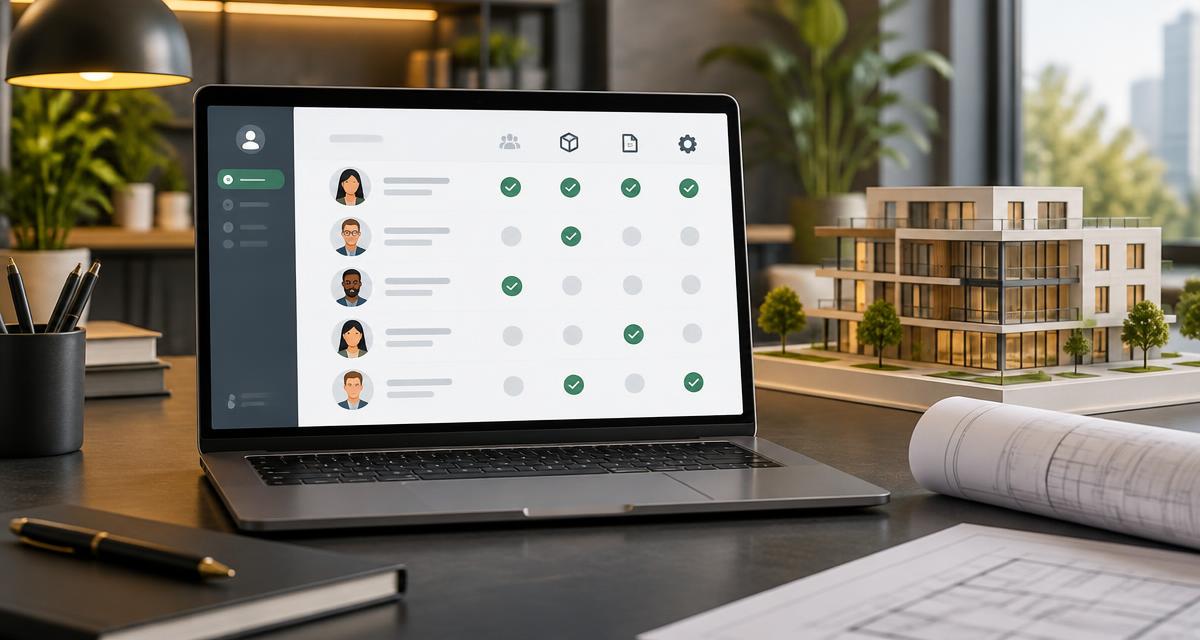
Autodesk Admin Panel is a common search phrase for the administration area inside Autodesk Account at manage.autodesk.com. It is not a separate CAD application that you install. Depending on your role and subscription, the portal lets you manage users, assign software access, review products and downloads, and work with teams. A normal user may see their own products without seeing the controls available to an administrator.
Start with the official Autodesk Account portal. A working password proves that you can sign in; it does not prove that you have a valid subscription, an admin role or permission to use educational software commercially.

Autodesk Admin Panel 3000 Invites 3 Yr
Check live availability Instant delivery
Before You Start: Account, Admin Role and License Are Different
| Item | What it does | What it does not guarantee |
|---|---|---|
| Autodesk ID / account | Identifies the person signing in | Paid products or administrator controls |
| Administrator role | Allows permitted team-management tasks | Unlimited seats or every Autodesk product |
| Subscription or entitlement | Defines the available software access | Access for users who have not been assigned it |
| Education eligibility | Qualifies eligible people or institutions for education access | A commercial-use license |
| Invitation | Adds a person to the relevant team workflow | A product seat unless access is also assigned |
Keep those distinctions in mind before troubleshooting. If you can log in but cannot see User Management, repeatedly changing your password will not create an admin role. If a person appears in your team but cannot open Revit, sending another invitation may not solve a missing product assignment. Check the layer that actually controls the problem.
How to Create an Autodesk Account
For a personal Autodesk ID, begin from Autodesk's official sign-in page and choose the account-creation option. Use an email address you control and can keep access to. For an organization-managed identity, ask your IT team whether you should use its existing sign-in process instead of creating an unrelated personal account.
- 1Open manage.autodesk.com and follow the sign-in or account-creation option. Check the domain before entering any credentials.
- 2Enter the requested name, email address and other registration details accurately. Use a unique password if the account uses password-based sign-in.
- 3Complete the email verification or other verification steps Autodesk presents. Check spam folders if the message does not arrive.
- 4Sign in again using the same email address. Review your account profile and available products rather than assuming registration activated a subscription.
- 5If you are joining an existing organization, ask its administrator to invite the exact email address you registered and assign the required product.
A company email address by itself does not make you a primary admin. An institutional-looking email address also does not automatically establish education eligibility. Both permissions and eligibility have their own requirements. If you already have an Autodesk ID, check whether that account is the intended one before creating duplicates that can make invitations and software activation harder to track.
Autodesk Account Login: Your First Dashboard Check
After signing in, check the account identity first, then the selected team if a team selector is available. Look for Products and Services to review your assigned software. Administrators should also check User Management. Billing and renewal options may depend on purchaser permissions, so not every administrator will see the same information. Autodesk changes interface labels over time; the underlying jobs remain account identity, team selection, user access and subscription verification.
- Confirm the signed-in email is the one that received the invitation or owns the relevant access.
- Select the correct team before counting users or available product seats.
- Check the product name and entitlement dates in the account instead of relying on a sales headline.
- Review security settings and enable additional verification where available and appropriate for your account.
- Do not share an administrator password as a shortcut for adding users. Invite people through the supported workflow.

Primary Admin vs Secondary Admin: Which Role Do You Need?
Autodesk's role documentation separates administrative responsibilities. The primary admin is the main administrator for a team. Secondary admins can help manage users and product access within their permitted scope. An SSO admin handles single sign-on administration where that capability is available. Purchasing or billing responsibilities are another consideration: being able to assign software should not be confused with being entitled to change payment or contract details.
| Role | Typical purpose | Practical check |
|---|---|---|
| Primary admin | Main team administration and permitted role management | Identify who is accountable for the team's access |
| Secondary admin | Help with invitations and product access | Grant only the permissions the person actually needs |
| SSO admin | Manage supported single sign-on configuration | Coordinate with the organization's identity/IT team |
| Standard user | Use software assigned to their own identity | Do not expect administrator controls |
For a small design team, one accountable administrator plus a trusted backup can be easier to maintain than giving everyone administrative access. Document who can invite people, who approves paid seats and who handles departures. If an employee leaves, transfer responsibilities through supported account controls before you lose access to the email address used for administration.
How to Invite Users in the Autodesk Admin Panel
Use the correct team and the official User Management area. An invitation should go to the user's own intended Autodesk identity, not to a shared login used by the whole office. For bulk operations, use the import option and template provided by your current portal, if available. Do not assume every subscription has identical import, group or SSO capabilities.
- 1Sign in with an account that has permission to manage users for the intended team.
- 2Open User Management, select the appropriate team and choose Invite users where that label appears.
- 3Enter First name, Last name and Email address as requested. Double-check spelling before submitting.
- 4Choose Send invite and ask the recipient to follow it using the same Autodesk account identity. If needed, review the user under By User and use Resend invite.
- 5Review the user's status in the team. Next, assign the intended product and verify access; an invitation alone is not the complete licensing workflow.
Invitation count and licensed seat count are not interchangeable. A listing that mentions 3,000 invites does not, by itself, establish 3,000 commercial licenses, simultaneous users or access to every Autodesk application.
How to Assign AutoCAD, Revit or Other Autodesk Products
Product assignment connects a person's Autodesk ID with a software entitlement that the team actually holds. Autodesk documents assignment through user-management views such as By User and By Product. The route you choose depends on whether you are giving one person several tools or assigning one tool to several people. Available seats, subscription scope and your role still control what you can assign.
- 1Open User Management and confirm you are working in the correct team.
- 2Choose the relevant user or product view and locate the person or application you want to manage.
- 3Select the available product access using the assignment controls shown in your account.
- 4Save the change and review the resulting access status or remaining seats.
- 5Ask the user to sign in to the software with the assigned Autodesk ID. If activation fails, compare the application's signed-in email with the portal assignment.
Do not promise a user AutoCAD, Revit, Maya, 3ds Max, Inventor or Fusion simply because those names are familiar Autodesk products. The exact entitlement must include the relevant product. Collections, individual subscriptions, education access and other plans can differ. For repeatable team setups, use groups where your account supports them, but test the resulting access with one user before making a large change.
Teams and Groups: Keep Access Organized
Teams help separate administration and subscriptions in Autodesk Account. Groups, where supported, help organize users and apply product access more consistently. Think of a team as the broader management context and a group as a useful user-organizing tool inside the available workflow. Always select the team first: searching the wrong team can make valid users or subscriptions look missing.
A practical starting point is to name groups by work requirements rather than by temporary projects—for example, people who need a particular design-tool set. Keep an access record, review unused assignments and remove access when it is no longer required. Before removing a user, consider their project and cloud-data responsibilities as well as their software license; those may require separate handling.
Education Access, 3,000 Seats and the 3-Year Claim Explained
This is the section to read before buying any listing with a large invitation number. Autodesk education access is subject to eligibility and use restrictions; it is not a cheap substitute for commercial licensing. Eligible students, educators and institutions must follow the applicable verification process. A supplied email address or an admin screen does not remove those requirements or prove that the person using the software qualifies.
Autodesk's student and educator overview describes free one-year, single-user Education Plan access, renewable annually while the user remains eligible. Its institutional assignment documentation distinguishes 250 single-user subscriptions per product for the classroom plan from 3,000 for the institution plan. These are specific education-plan capacities, not a promise attached to any account advertised online. Autodesk also explicitly restricts education software to learning and research—not commercial, professional or other for-profit purposes. See the official education references below for the applicable terms.
The FA Tools Store supplier listing is titled Autodesk Admin Panel 3000 Invites 3 Yr and describes educational-product access. Those are listing claims, not a guarantee that Autodesk grants every buyer a three-year commercial subscription. Check the live entitlement, renewal requirements, eligible users, permitted usage and exact product scope. Do not equate an invitation allowance with a universal license allowance. If any of these points is unclear, ask support before paying.
- For paid client work or business operations, verify that you have an appropriate commercial entitlement.
- For learning or institutional use, check Autodesk's education eligibility and the applicable renewal conditions directly.
- Never provide false enrollment, employment or institutional details to pass verification.
- Do not assume a seller can guarantee Autodesk policy decisions, account acceptance or future renewals.
- Request clarity about the administrator role, account ownership and delivered access—not only the invitation number.
Install and Activate Your Assigned Autodesk Software
Once access is assigned, the user should review Products and Services in their Autodesk Account and download the eligible application using Autodesk's official installation options. Check the supported operating system, hardware requirements and available version before downloading a large installer. An admin portal is not a patch or activation utility, and unofficial installers are unnecessary for legitimate account-based access.
- 1Confirm that the product appears under the user's own assigned account.
- 2Choose the appropriate version, platform and download or installation option shown by Autodesk.
- 3Install the software and required updates using official files. For organization-wide deployment, consult Autodesk's supported deployment guidance.
- 4Launch the application and sign in with the same Autodesk ID that has product access.
- 5Open a small test project to confirm the application works before planning a class or client deadline around it.
Common Autodesk Admin Panel Problems—and What to Check First
| Problem | Likely area to check | Useful next step |
|---|---|---|
| User Management is missing | Role or selected account/team | Ask the primary admin to confirm your role |
| Invitation never arrives | Email spelling, spam filter or pending status | Verify the address, then use the supported resend action |
| User joined but cannot open software | Product assignment or wrong Autodesk ID | Compare assignment with the application's signed-in email |
| Product or seat is missing | Team, subscription status or entitlement scope | Check the correct team and account records |
| Sign-in keeps looping | Session, identity configuration or software updates | Try a clean browser session and consult Autodesk support |
| Education access stopped | Eligibility, entitlement expiry or renewal | Check Autodesk's current education requirements |
Troubleshoot in a fixed order: identity, team, role, entitlement, assignment, then installation. That avoids making unrelated changes. If your organization uses SSO, involve the identity administrator rather than experimenting with random password resets. Record the exact error, product and time of failure, but never post passwords, recovery codes or private account details in a public forum.
Why does my Autodesk account show no products?
A newly created account can legitimately have no assigned products. It can also be the wrong email account, the wrong team context or an account with expired access. Check those possibilities before deciding the portal is broken. For recently purchased access, compare the order and delivery instructions with the identity you actually used to sign in.
Can I invite a user without giving them my password?
Yes—the point of a supported invitation and product-assignment workflow is to let people use their own identities. Sharing the administrator login makes security, accountability and recovery harder. If a supplied account cannot support the individual-user workflow you need, clarify its limitations before using it for a larger team.
Security Checklist for Administrators
- Use a unique password and additional verification where supported. Keep recovery information secure.
- Give admin permissions only to trusted people who need them; standard users should remain standard users.
- Review team membership and product assignments regularly, particularly after staff or student changes.
- Check the real Autodesk domain before entering credentials. Avoid activation patches and unknown browser extensions.
- Change account details only when you are authorized to do so and understand the account's ownership and recovery arrangements.
- Keep order references and private access records separate from public screenshots or shared documents.
Want to Check the FA Tools Store Autodesk Listing?
This guide is mainly about using Autodesk Account—not a long checkout tutorial. If you want to compare the available store listing, the product link below opens its live price, stock, description and delivery terms. Read the education and account-ownership limitations first. FA Tools Store is the storefront for this listing; this article does not establish Autodesk authorization, partner status or unrestricted commercial-use rights.
Before ordering, ask exactly which administrator role is delivered, which products can be assigned, whether your intended users qualify, what the stated duration covers and what happens if access needs renewal or verification. Keep those answers with your order. For a business license or an eligibility question the seller cannot establish, use Autodesk's official licensing route rather than assuming the cheapest listing fits your needs.
Final Takeaway: Verify Access Before You Scale
The Autodesk Admin Panel becomes much easier once you separate account creation, administrator permission, user invitations and product assignment. Create or use the correct identity, choose the right team, confirm the entitlement and assign one test user before expanding. Large invitation numbers are less important than valid access, clear ownership and a license that matches your real use. That is the foundation for a setup you can actually manage.
Sources and official references
- Autodesk Account — official management portal
- Autodesk Support — user management admin roles
- Autodesk Support — assign product access
- Autodesk Support — manage teams
- Autodesk Education — eligibility and access
- Autodesk Education — one-year access and non-commercial restrictions
- Autodesk Education — classroom and institution seat assignments
- Autodesk Learn — invitation workflow
- Autodesk — subscription and Flex plans
Frequently Asked Questions
What is the official Autodesk Admin Panel login URL?
Use https://manage.autodesk.com for Autodesk Account management. The options you see depend on your account, team, role and available entitlements.
Does creating an Autodesk account make me an admin?
No. Registration creates an Autodesk identity. Administrator permissions and software entitlements are separate and must be established through the applicable team and licensing workflow.
How do I invite users to Autodesk Account?
Sign in with the appropriate admin permissions, select the right team, open User Management and use its invitation controls. Invite the correct email identity, then assign the required product access.
Why can an invited user not access AutoCAD or Revit?
An invitation alone does not guarantee product access. Check the correct team, available entitlement, product assignment and the Autodesk ID used inside the application.
Does 3,000 invites mean 3,000 commercial licenses?
No. Invitation counts, licensed seats, concurrent use and commercial-use rights are different. Verify the actual entitlement and permitted usage rather than relying on a listing title.
Can education access be used for paid client projects?
Do not treat education access as a commercial license. Autodesk education eligibility and use restrictions apply; verify an appropriate commercial entitlement for business or paid client work.
Is the three-year duration guaranteed by Autodesk?
The store listing includes a three-year claim, but this article does not verify an Autodesk-issued three-year entitlement for every buyer. Check the live account dates, renewal requirements and written delivery terms before purchasing.
Where can I check the Autodesk Admin Panel product price?
Use the linked FA Tools Store product page for the live price, stock and terms. Confirm account ownership, admin role, education eligibility and license scope before paying.